

Help passengers join your bus tour’s Wi-Fi without typing a network name and password. This guide uses Bus Tours as the example guest network name.
Log in to Skipto before you begin. You’ll need an onboard router and an active internet connection; the QR code shares the Wi-Fi details.
1. Use a guest network
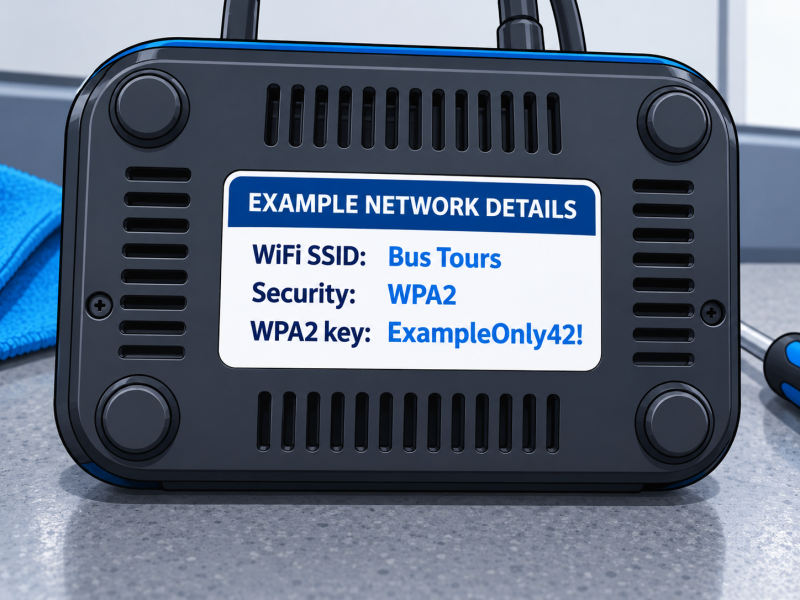
Choose the onboard guest Wi-Fi network intended for passengers. Confirm its current network name, password and security type with the person who manages the router. In this example, the network name is Bus Tours. Use the exact spelling, spacing and capitalisation.
2. Choose the Wi-Fi QR type
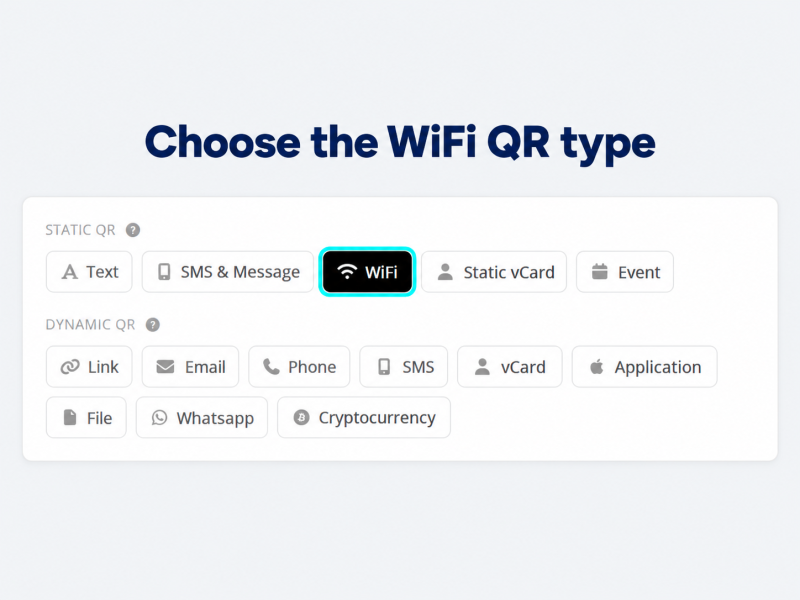
In Skipto, find the Static QR options and select WiFi, as shown below.
3. Enter your details and create the code
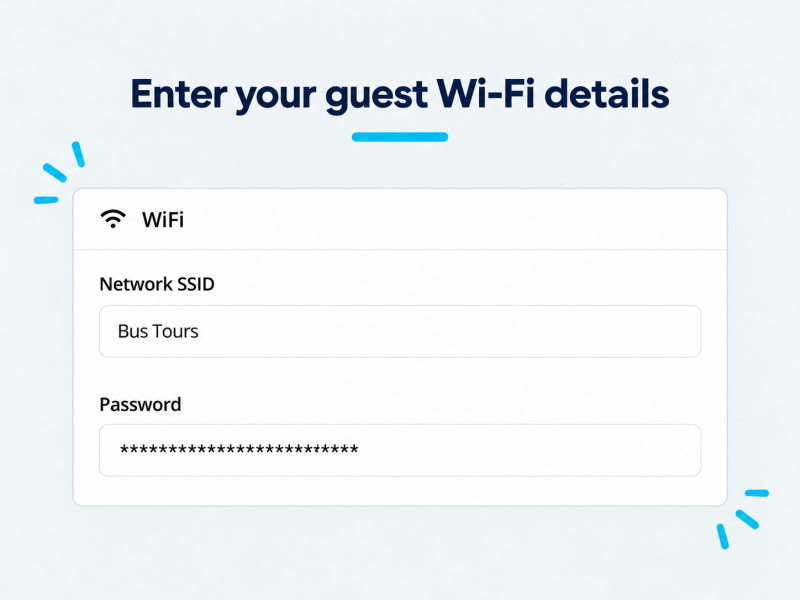
Enter Bus Tours in Network SSID if that is your actual guest network name, then enter its password in Password. Generate the QR code and download it. The code contains the network credentials, so display it for your passengers as you would the Wi-Fi password.
4. Test with a guest device
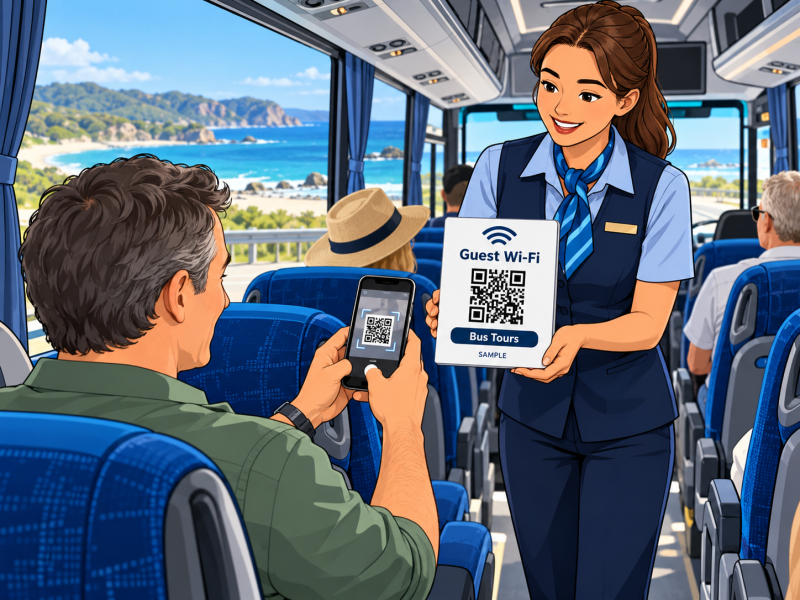
While the bus is parked, use a phone that is not already connected to the guest network. Scan the code, follow the phone’s prompt to join and confirm internet access works. A conductor or tour host can bring a small QR sign around so seated passengers can scan it from their seats. Internet availability will depend on the onboard connection and mobile coverage.
5. Put it where guests need it
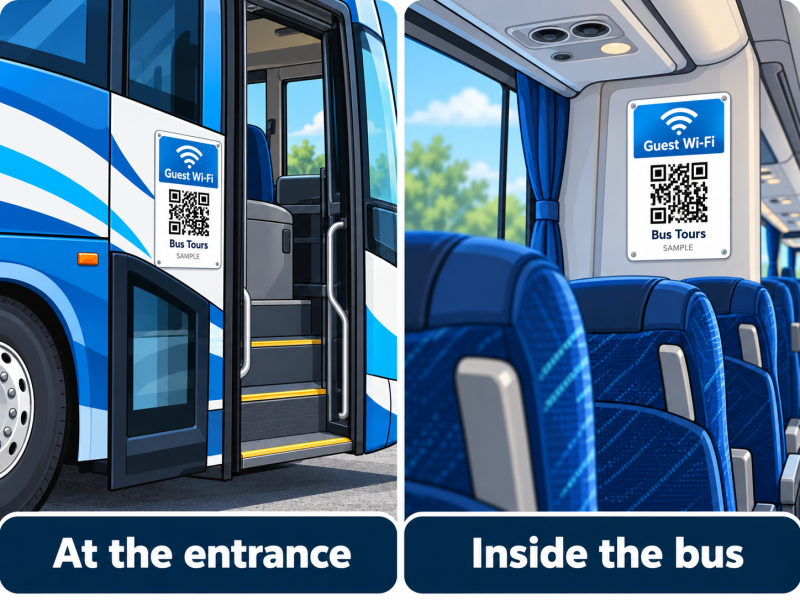
Put a QR sign beside the bus entrance where passengers can scan safely while boarding, and another on an interior wall where it is easy to see. Keep a handheld copy for the conductor or tour host. Label each sign “Guest Wi-Fi” and “Bus Tours”, and test the printed codes in the bus’s lighting.
6. Replace it when details change
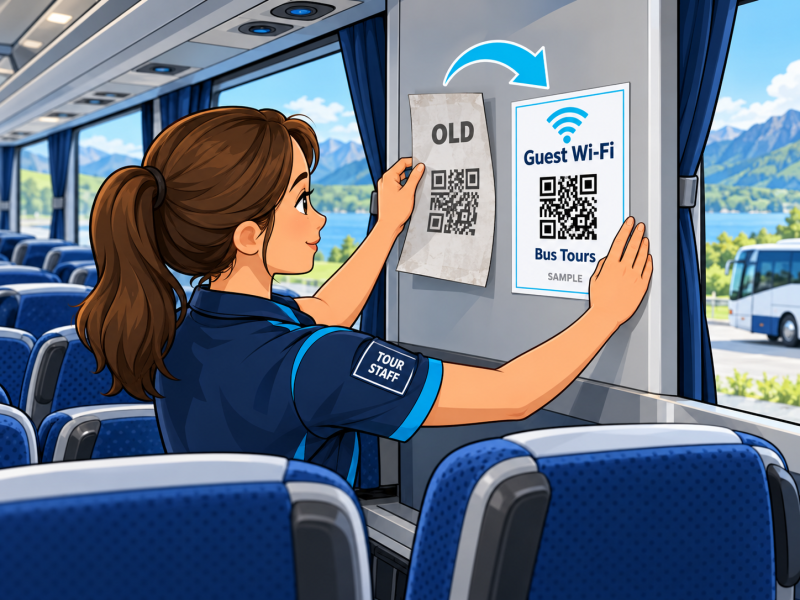
If the network name, password or security type changes, generate a new static Wi-Fi QR code. Replace every copy: the entrance sign, the interior wall sign and the conductor’s handheld sign. Test the new code before the next tour. Static Wi-Fi scans do not pass through a tracked web link.
Need a hand?
We can help with a one-off setup, either by quote or hourly. Ask about setup help or browse more guides.