SKIPTO IN PRACTICE

Let the last page become the start of your reader’s next chapter

A reader finishes your book. They want more—but will they remember to search for you later?

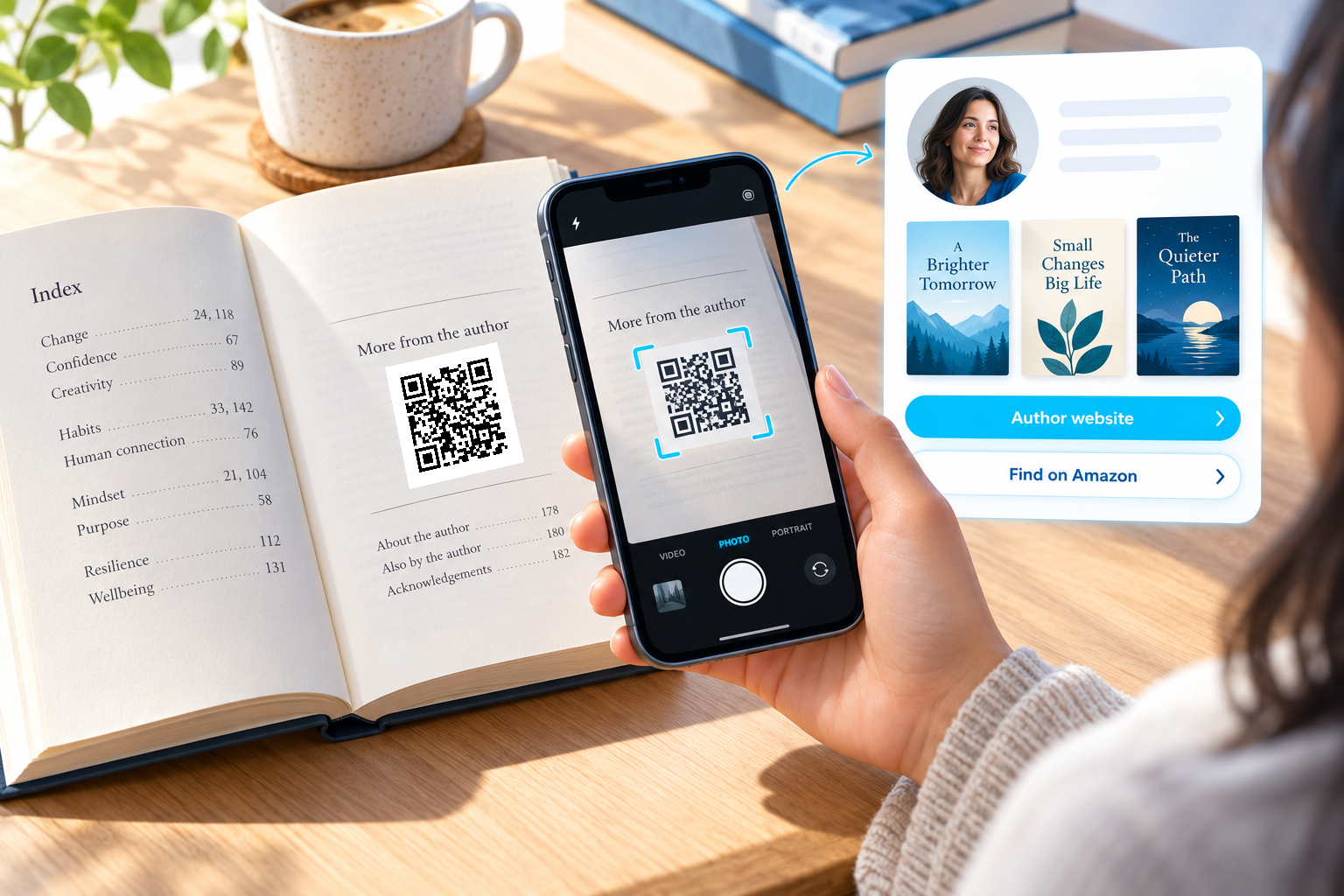
A QR code beside the index or on your “About the author” page creates an immediate connection between your printed book and your online presence.

Example in action

A reader spots “Enjoyed this book? Discover more from the author.” They scan the code and reach a page containing your author biography, other titles and a button to find your books on Amazon.

How to use Skipto

Choose the destination that supports your goal:

  • Author website: build a deeper relationship with readers.
  • Amazon book or author page: make the next title easier to find.
  • Skipto microsite: offer several choices from one printed code.

Create a separate link for each title or edition if you want to compare which books bring readers online. A dynamic destination also lets you refresh your online offering without changing the code already printed in your books.

Keep the code clear of the binding and give it enough space to scan easily.

The customer experience

Scan the printed page, meet the author online and choose what to explore next.

Try the example

Tap the tracked QR link below to follow the same route as a scan. You can also open the sample page directly.

Keep the printed code useful

Update the destination when your next title launches or a retailer link changes, while keeping existing printed copies useful.

Create a clear next step

Use a short caption to explain what will happen after the scan.

Review the response

Use a separate link for each placement you want to compare. Activity does not prove that an enquiry or sale occurred.

Change the destination later

Edit the existing dynamic link and scan the original printed code again to check it.

Keep the connection going beyond the book.

Create your author QR code with Skipto.