SKIPTO IN PRACTICE

A business card they can keep in their phone

A good conversation deserves more than a business card that disappears into a drawer.

Add a Skipto QR code to the back of your card and give people a simple way to explore your business, contact you and save your details.

Example in action

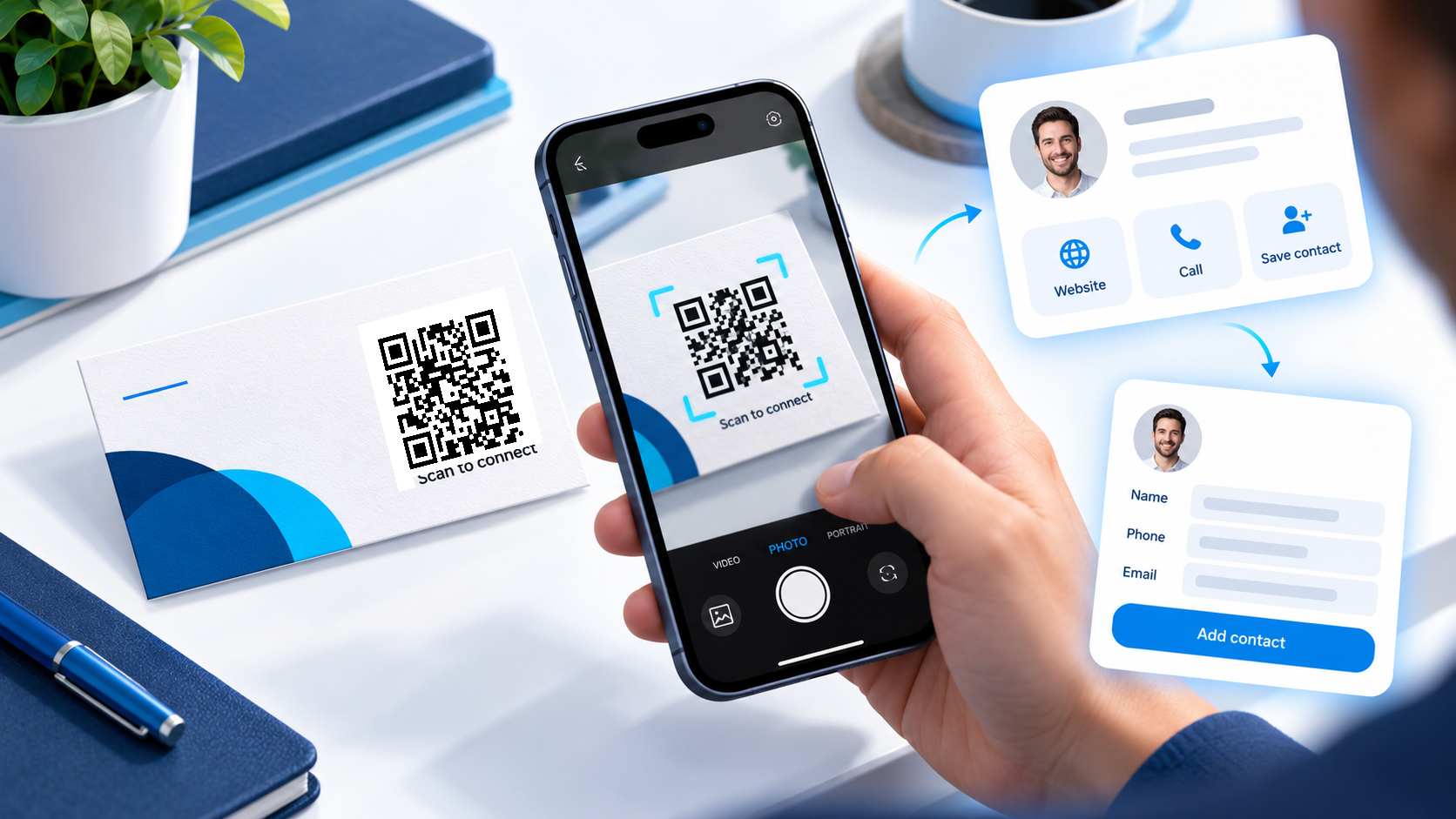
You hand someone your card after a meeting. They scan “Scan to connect” and open your business microsite.

From there, they can visit your website, browse your services, call you or select “Save contact.” A contact card presents your details ready for them to review and add to their phone.


How to use Skipto

For a card focused only on contact sharing, a direct vCard QR code is another option. Contact details encoded directly into a static code require reprinting when those details change.

The customer experience

Scan, explore your business and choose to save your details. The customer confirms the contact addition; scanning does not silently save it.

Try the example

Tap the tracked QR link below to follow the same route as a scan. You can also open the sample page directly.

Keep the printed code useful

Update the microsite as your services change. Use a dynamic contact card when your phone, role or address may change.

Create a clear next step

Use a short caption to explain what will happen after the scan.

Review the response

Use a separate link for each placement you want to compare. Activity does not prove that an enquiry or sale occurred.

Change the destination later

Edit the existing dynamic link and scan the original printed code again to check it.

Make every introduction easier to follow up.

Create your digital business card with Skipto.